Getting started.
Making an account, adding your first todo, how the add box reads what you type, projects, workspaces and the phone apps.
Your account and your first todo
On Create your account, give your name, your email and a password. Where the page offers them, you can sign up with Google or Apple instead. We then send a 6-digit code to your email to confirm it’s yours.
While sign-up is invite only, the page says so, and you’ll need an invite: from the waitlist, or from someone who added you to their home or workspace.
Unless an invite already brought you into a home or a workspace, you’re then asked Who is this for? Pick Just me., My home. or My team. You can add the others later, and Skip for now is the same as just me.
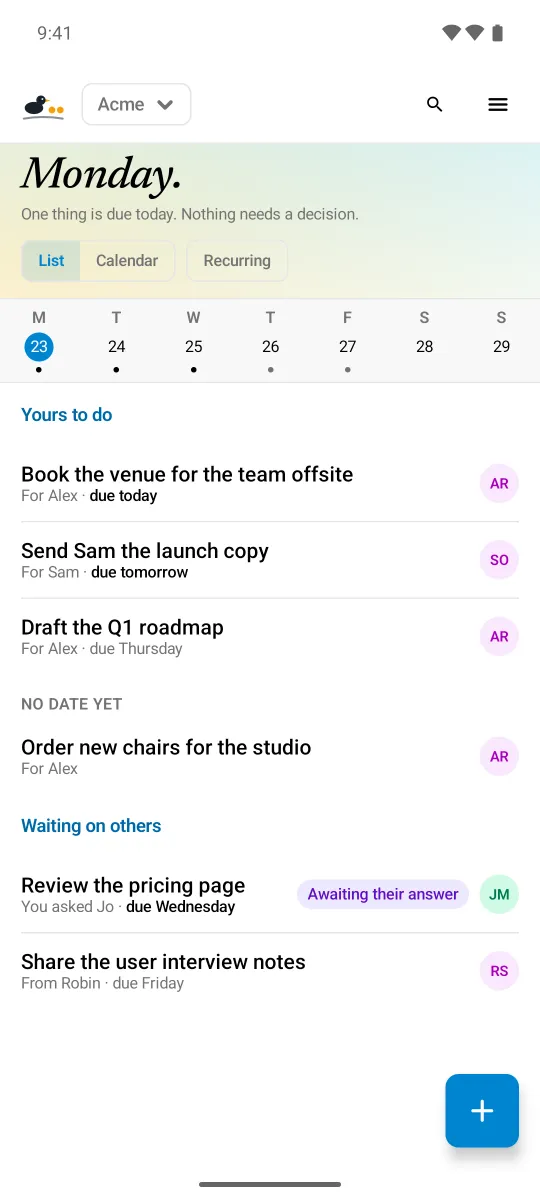
Then type something into the add box at the top of the dashboard, such as Call mum on Sunday, and press Enter. It goes under Yours to do.
Type it the way you’d say it
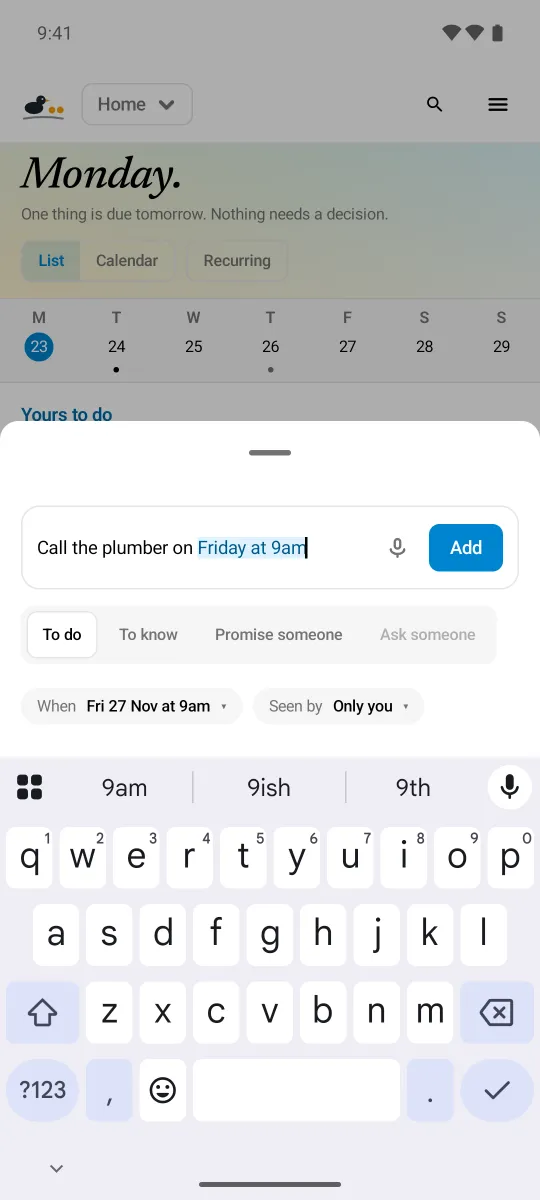
The add box reads a date, a person and a repeat out of an ordinary line, as you type. Pay the gardener by Friday is a todo for Friday. Put out the bins every Tuesday repeats. How to write dates, times and repeats is on Dates and repeats.
Once you’ve typed something, a switch under the line says what it is:
- To do: something for you to do.
- To know: something to be aware of on a day, like a train or an appointment. There’s nothing to tick off, and it goes by itself after its day. It needs a day.
- Promise someone: you’ll do it for someone else.
- Ask someone: you’re asking someone else to do it. There has to be somebody else in the workspace to ask.
Your words set the switch, and you can change it with a click. How asks and promises work is on Asks and promises.
Beside the switch, pills show what will be saved, and each one opens to change it:
- When: the day, the time or the repeat it read, or No date.
- Seen by: who can see something: Only you (on a promise, the two of you), everyone, a team, the people you pick, or, in a project, everyone and its shared page.
- For or Ask: who a promise or an ask is with.
“Save like this?”
When the box would word the title differently from what you typed, it asks Save like this? before saving. You see what you typed, and what it’ll be saved as, which you can edit. The same switch and pills are there to change.
Choose Save suggestion or Save with original wording. Tick From now on, save suggestions without asking to stop the question.
You can change this any time under Your profile, in Wording: Ask me first, Save the suggestion or Keep my words. With Keep my words, what you type is what gets saved, and nothing is sent to be read.
Say it instead
Where your browser can listen, the add box has a microphone. Hold it to speak, and let go to stop. A long press on the space bar in the box does the same, and a tap is still a space.
What you say lands in the box as words. Nothing is added until you press Enter or Add.
If your browser has the microphone turned off for the site, you’ll be told, and you can allow it in your browser’s settings.
Projects with #
With Plus, or a team plan, which gives everyone in the team Plus. See Pricing.
A project groups todos, promises and things to know inside one workspace. Make one from Projects in your account menu, with New project. A workspace’s projects are shared by everyone in it.
To put something in a project as you add it, type # and a menu lists the workspace’s projects, narrowing as you type. A project’s tag is its name in lower case with the spaces and punctuation taken out, so a project called Garden Shed is #gardenshed.
Fix the gate this weekend #gardenshed goes into Garden Shed, and the tag isn’t part of the title. A # word that isn’t one of your projects stays in the words as you typed it.
The shared page lays the items out by date, like the project’s own page, and a date that has moved is marked as moved. Each item shows its own words, so a name typed into one shows too. It never shows who an item is with, descriptions, notes, asks still waiting for a yes, or anything in the project not marked for it. Search engines are asked not to list it, so only people you send the link to will find it.
While a project is shared, its button reads Shared. Choosing it opens the link with Copy link, the Note on the page with Save note, and New link…, which makes a new link and stops the old one straight away. Turn off sharing… stops the page straight away, and that link won’t work again. The note is kept, and so is what each item is marked; turning sharing on later makes a new link.
Turning sharing on, with Turn on sharing in Share, takes Plus or a team plan. Once it’s on, anyone in the workspace can do the rest. If nobody in the workspace has Plus or a team plan any more, the page pauses, and the same link works again once someone does.
Personal, home and work
Everything lives in a workspace, and you switch between them from the workspace menu at the top of the page.
- Personal: every account has one. It’s just for you, and nobody else can be invited to it.
- A home: for a partner, a housemate or the family. You’re in one home at a time.
- A work workspace: for colleagues, with teams you can ask.
Switch to Everything in the same menu and your list and calendar cover each place you’re in, with a mark on each row for where it lives, and the add box says where a new todo goes.
To start a home or a work workspace, choose New workspace… from the same menu, then Home or Work. You’ll be its admin. Inviting people is on People, teams and guests.
The phone apps
Ready now on Google Play, and coming soon on App Store. Sign in with the account you already have.
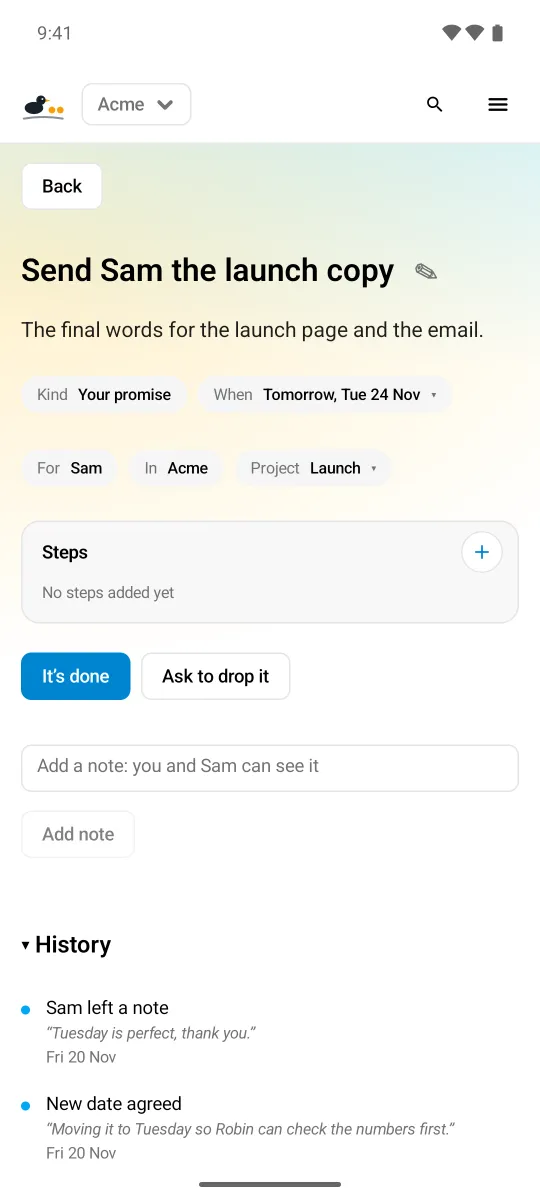
The apps have the same add box: the same four choices, the same pills and the same Save like this? On a phone you tap the microphone to speak, rather than holding it.